Go Back   Flash Flash Revolution > Life and Arts > Art and Graphics
Register FAQ Community Calendar Today's Posts Search

Reply
 
Thread Tools Display Modes
Old 02-19-2005, 01:53 PM   #1
Tank101
I V vi iii IV I IV V
FFR Simfile Author
 
Tank101's Avatar
 
Join Date: Mar 2004
Location: The Tent
Age: 34
Posts: 2,082
Send a message via AIM to Tank101
Default A new sig

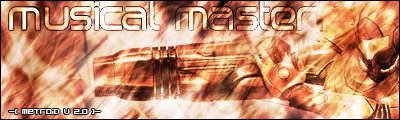
I put this together today in photoshop. I like it a lot better than my old one.

1. Red/White gradient as background
2. Render>Clouds
3. Made 2 orange parellel(spelling?) lines. (Added style to them but it didn't make too much of a difference.
4. Orange rectangle between them, set opacity to 25.
5. Added Mortal Kombat 5 text, 48 point.
6. Set layer style for the text with Drop Shadow, Inner Shadow, Outer Glow, Inner Glow, Bevel and Emboss, Satin, Color Overlay, Gradient Overlay, and Pattern overlay.
7. Added the arrow custom shape and did the same layer styles as the text.

Comments?

Tank101 is offline   Reply With Quote
Old 02-19-2005, 01:56 PM   #2
Mychilli
FFR Player
 
Mychilli's Avatar
 
Join Date: Apr 2004
Location: ^ _ ^
Age: 36
Posts: 555
Send a message via AIM to Mychilli
Default RE: A new sig

i dont see it

i made mine on MS Paint and Xara X

*edit* nm, i see it

Much better
__________________
Mychilli is offline   Reply With Quote
Old 02-19-2005, 01:57 PM   #3
Tank101
I V vi iii IV I IV V
FFR Simfile Author
 
Tank101's Avatar
 
Join Date: Mar 2004
Location: The Tent
Age: 34
Posts: 2,082
Send a message via AIM to Tank101
Default RE: A new sig

Wtf after all that I forgot to add the image, it's there now.

Also, I would like critiques and ways to improve.
Tank101 is offline   Reply With Quote
Old 02-19-2005, 01:58 PM   #4
Mychilli
FFR Player
 
Mychilli's Avatar
 
Join Date: Apr 2004
Location: ^ _ ^
Age: 36
Posts: 555
Send a message via AIM to Mychilli
Default RE: A new sig

make those 2 lines not extend the entire banner.
__________________
Mychilli is offline   Reply With Quote
Old 02-19-2005, 02:09 PM   #5
Musical_Master
FFR Player
 
Join Date: Jan 2004
Posts: 1,788
Send a message via AIM to Musical_Master
Default RE: A new sig

It's alright. I actually like the sig you have now more, mainly because of the colors. I like blue more than red.

I suggest making a border. You can make a simple black border by hitting control A, then going to edit --> stroke. Make it one pixel black.

Also, try lowering the bevel on the text.

EDIT: Here is a tut on how to make borders.
http://www.infinity-effect.com/forum...ed=1#post10833
__________________
Musical_Master is offline   Reply With Quote
Old 02-19-2005, 02:22 PM   #6
Tank101
I V vi iii IV I IV V
FFR Simfile Author
 
Tank101's Avatar
 
Join Date: Mar 2004
Location: The Tent
Age: 34
Posts: 2,082
Send a message via AIM to Tank101
Default RE: A new sig

"Could not complete your request because the layer is locked"

Wtf, how do you unlock layers?
Tank101 is offline   Reply With Quote
Old 02-19-2005, 02:28 PM   #7
Musical_Master
FFR Player
 
Join Date: Jan 2004
Posts: 1,788
Send a message via AIM to Musical_Master
Default RE: A new sig

The only way I know is to go to layer --> new --> Layer from background.

I'm sure there are better ways, but I don't know any of them. :P
__________________
Musical_Master is offline   Reply With Quote
Old 02-19-2005, 03:07 PM   #8
Tank101
I V vi iii IV I IV V
FFR Simfile Author
 
Tank101's Avatar
 
Join Date: Mar 2004
Location: The Tent
Age: 34
Posts: 2,082
Send a message via AIM to Tank101
Default RE: A new sig

Nevermind, I found out you can't edit layers with jpeg, duh!

Tank101 is offline   Reply With Quote
Old 02-23-2005, 08:53 AM   #9
gardyloo
FFR Player
 
gardyloo's Avatar
 
Join Date: Feb 2005
Location: hell
Posts: 580
Default RE: A new sig

hmmm... arrow-ey
__________________
bye
gardyloo is offline   Reply With Quote
Old 02-25-2005, 02:18 PM   #10
XTTX
FFR Player
 
Join Date: Oct 2004
Location: New York
Posts: 80
Send a message via AIM to XTTX
Default Re: RE: A new sig

Quote:
Originally Posted by Tank101
"Could not complete your request because the layer is locked"

Wtf, how do you unlock layers?
BG layers are automatically locked, you could either double click the lock to transform the layer from a background layer, to a layer layer (lol), or do what Musical_Master said, creatring a duplicate layer of the background. Anyways I could always help you. BTW I suggest ending the opacity bar at the end of the arrow. Also I want to test my photoshop skills, to try to recite what you did to make that (and for a small tutorial if people want to reproduce it)
1. Make a new document any size
2. On your first layer go to Filters->Render->Clouds
3. Ctrl+U (Hue/Saturation) change to a red color so it looks good
4. Create a new layer
5. Take your Line Lasso Tool, and hold shift down and drag a arrow, then fill with white
6. Double click on your arrow layer, and use the following default options:
Inner Shadow
Outer Shadow
Inner Glow
Outer Glow
Bevel & Emboss
Contour
Texture
Color Overlay (RED)
7. Create a new layer. Create a white bar across the middle of the document.
8. Blending Options
Stroke size 1 color black
9. Set opacity of white bar to 50%
10. Create new text
11. Use the following blending options
Outer Glow
Inner Shadow
Outer Shadow
Bevel & Emboss
Contour
Texture
Color Overlay Dark Red

And you should get something similar to his. BTW This was made juset by looking at his image, I don't know what he actually did.
__________________


XTTX is offline   Reply With Quote
Old 02-25-2005, 02:21 PM   #11
Tank101
I V vi iii IV I IV V
FFR Simfile Author
 
Tank101's Avatar
 
Join Date: Mar 2004
Location: The Tent
Age: 34
Posts: 2,082
Send a message via AIM to Tank101
Default RE: Re: RE: A new sig

Quote:
Originally Posted by Tank101
Nevermind, I found out you can't edit layers with jpeg, duh!
And

Quote:
Originally Posted by Tank101
1. Red/White gradient as background
2. Render>Clouds
3. Made 2 orange parellel(spelling?) lines. (Added style to them but it didn't make too much of a difference.
4. Orange rectangle between them, set opacity to 25.
5. Added Mortal Kombat 5 text, 48 point.
6. Set layer style for the text with Drop Shadow, Inner Shadow, Outer Glow, Inner Glow, Bevel and Emboss, Satin, Color Overlay, Gradient Overlay, and Pattern overlay.
7. Added the arrow custom shape and did the same layer styles as the text.
Tank101 is offline   Reply With Quote
Old 02-25-2005, 02:39 PM   #12
djsmalls
FFR Player
 
djsmalls's Avatar
 
Join Date: Mar 2004
Location: next in line
Posts: 735
Send a message via AIM to djsmalls Send a message via MSN to djsmalls Send a message via Yahoo to djsmalls
Default RE: Re: RE: A new sig

its funny
ive had photoshop for nearly 8 months and i still dont know how to do that orange line thing XD
someone link a tut =D
__________________

djsmalls is offline   Reply With Quote
Old 02-25-2005, 04:50 PM   #13
Porgy
FFR Player
 
Join Date: Jul 2003
Location: Cloud 9
Posts: 218
Send a message via AIM to Porgy Send a message via Yahoo to Porgy
Default RE: Re: RE: A new sig

orange line thing? Please dont say you are refering to the transparent orange bar......
__________________
I want fish tacos.....
Porgy is offline   Reply With Quote
Old 02-25-2005, 06:26 PM   #14
Musical_Master
FFR Player
 
Join Date: Jan 2004
Posts: 1,788
Send a message via AIM to Musical_Master
Default Re: RE: Re: RE: A new sig

Quote:
Originally Posted by djsmalls
its funny
ive had photoshop for nearly 8 months and i still dont know how to do that orange line thing XD
someone link a tut =D
Meh, I couldn't find any tuts so I'll just tell you how. You should know, though, it's really simple.

1. Take out an image you want to put the bar on.
2. Select your rectangular marquee tool.
3. Now highlight the area where you want the bar with that rectangular marquee tool.
4. Create a new layer.
5. Click on your paint bucket tool, and select a color.
6. Now lower the opacity, I usually lower it to about 50.
7. Fill the highlighted area with the color.

There is your bar. Follow these steps if you want to add a border.

1. Control D(To disselect)
2. Get out your pencil tool.
3. Choose the color you want your border to be.
4. Hold shift(to get a straight line) and at the top of your bar make a line.
5. Do this with the bottom also.

EDIT: You can zoom in when making the border on the bar. It helps to make sure the border is exactly attached to the bar.

There you go, a transparent opacity bar with a border.
__________________
Musical_Master is offline   Reply With Quote
Old 02-25-2005, 06:29 PM   #15
Tank101
I V vi iii IV I IV V
FFR Simfile Author
 
Tank101's Avatar
 
Join Date: Mar 2004
Location: The Tent
Age: 34
Posts: 2,082
Send a message via AIM to Tank101
Default RE: Re: RE: Re: RE: A new sig

I just did 2 lines with the line tool and a rectangle from the rectangle tool.
Tank101 is offline   Reply With Quote
Old 02-25-2005, 06:31 PM   #16
Musical_Master
FFR Player
 
Join Date: Jan 2004
Posts: 1,788
Send a message via AIM to Musical_Master
Default RE: Re: RE: Re: RE: A new sig

I don't like using the line tool. I can never get it straight so I have to keep undoing and undoing and undoing.

But yes.. that works too.
__________________
Musical_Master is offline   Reply With Quote
Old 02-27-2005, 12:38 PM   #17
XTTX
FFR Player
 
Join Date: Oct 2004
Location: New York
Posts: 80
Send a message via AIM to XTTX
Default RE: Re: RE: Re: RE: A new sig

hold shift...
__________________


XTTX is offline   Reply With Quote
Old 02-27-2005, 02:38 PM   #18
g0ldenSun11
FFR Player
 
g0ldenSun11's Avatar
 
Join Date: Jun 2003
Location: Texas
Posts: 243
Send a message via AIM to g0ldenSun11 Send a message via Yahoo to g0ldenSun11
Default

Instead of de-seclecting the area of the bar and then using the pencil to make the line couldn't you just go Edit > Stroke, then do a one pixel border on the outside setting?
__________________
g0ldenSun11 is offline   Reply With Quote
Old 02-27-2005, 05:56 PM   #19
XTTX
FFR Player
 
Join Date: Oct 2004
Location: New York
Posts: 80
Send a message via AIM to XTTX
Default

Quote:
Originally Posted by g0ldenSun11
Instead of de-seclecting the area of the bar and then using the pencil to make the line couldn't you just go Edit > Stroke, then do a one pixel border on the outside setting?
That's what I suggested .
__________________


XTTX is offline   Reply With Quote
Reply


Currently Active Users Viewing This Thread: 1 (0 members and 1 guests)
 

Posting Rules
You may not post new threads
You may not post replies
You may not post attachments
You may not edit your posts

BB code is On
Smilies are On
[IMG] code is On
HTML code is Off

Forum Jump


All times are GMT -5. The time now is 07:15 AM.


Powered by vBulletin® Version 3.8.1
Copyright ©2000 - 2026, Jelsoft Enterprises Ltd.
Copyright FlashFlashRevolution